This tutorial will guide you in enabling the Games Folder in Windows 8.

The games folder was introduced with Windows Vista and improved on Windows 7. It included games that came installed with Windows, like Chess and Solitaire, and it also added any new games you might have installed. The games folder also showed detailed information about the games, including high score, age ratings, and compatibility. If the developers allowed it, the games could be updated directly from the Games folder.
With Windows 8, however, the focus chase changed, and, thus, the games folder has been hidden away. First of all, the games that came preinstalled with Windows Vista and 7 are no longer included on Windows 8. Secondly, with Windows 8, we are expected to organize apps, including games, differently. We would typically pin frequent apps and games on the start screen and access the rest from either by doing a “Start Search’ or from the “All Apps” menu on the Start screen.
It is possible, however, to access the legacy Windows 7 Games folder in Windows 8. You may find it useful to organize any desktop games you have installed and get detailed information about your games. However, the Windows 7 games are not included in the Games Folder. Therefore, to access the Games Folder, you need to first install a Game you already own so Windows can automatically enable the Games Folder and put your games there.
Here’s how to get access to the Games Folder
- Install a game you own, preferably a commercial one, one that you acquired from a well-known vender. Most retail games will work, including games that predate Windows Vista. For example, Roller Coaster Tycoon, a game from 1999, is still recognized by Windows and will work here.
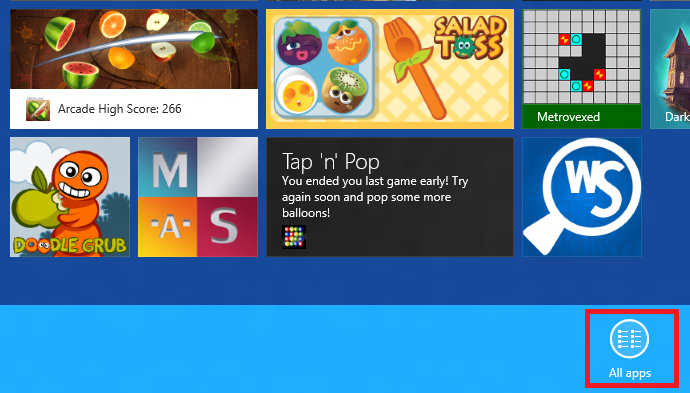
- Once installed, open the “All Apps” menu from in the start screen.

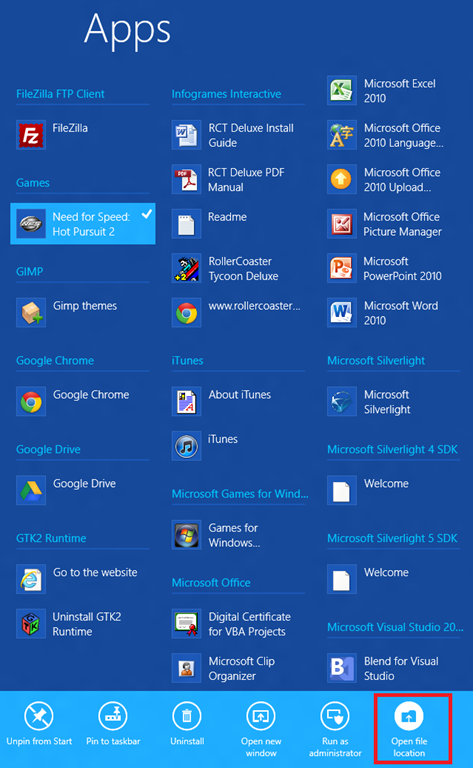
- From the “All Apps” menu, locate a group called “Games” (Note: this group will only be visible if you installed a game as specified in step 1.)
- Right-click on a game under the group “Games” and click the “Open File Location” button.
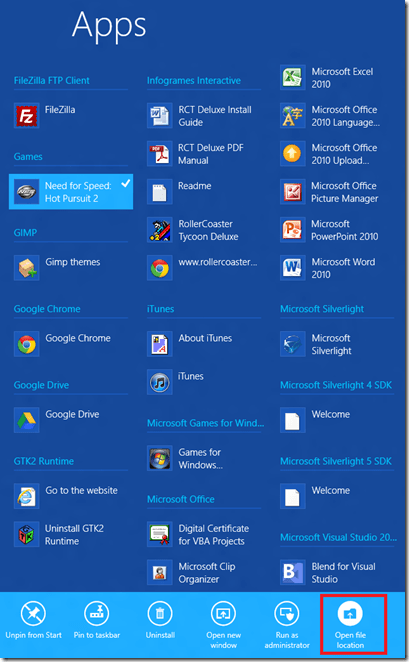
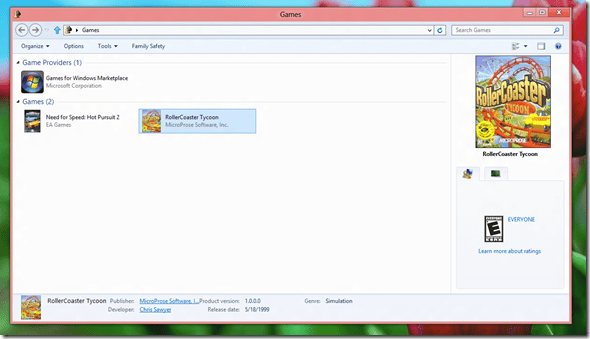
- This will open up the Windows 7 Games folder, with a listing of all of your games. You can manually add other games if Windows didn’t recognize them. You can also pin the folder to the taskbar for easy access.
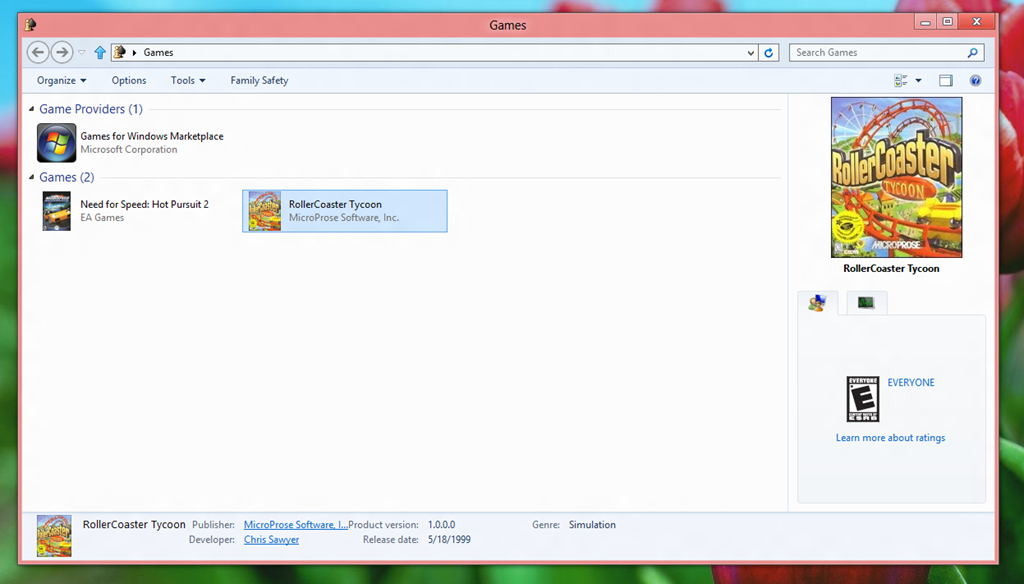
There you go, Games Folder in Windows 8.




 McAkins Online
5 responses to “How to Access the Windows 7 Games Folder in Windows 8”
That’s great but how do you make a shortcut to that folder?
LikeLike
This doesn’t work. This only opens your user games folder, not the full games folder, which is no longer stored in with all the other All User Start Menu folders.
LikeLike
Yes, this missed the final needed piece. How to make that shortcut (so it can be pinned on your start screen)
LikeLike
I finally discovered the answer, in case anyone comes in still wanting this. :) When you follow the instructions above and have the Games window open you should have the icon in your taskbar. Right click the icon, hover over Games, and select Properties.
In the properties window, on the General tab, one of the properties should be a location. Copy paste that location (it may go off the right side of the window, but as you click and drag the location will scroll). Once it’s highlighted, Ctrl+C to copy, then open a Files Explorer window.
In the address bar of the Files Explorer window, paste that location. Ctrl+V. When you are at the location, you should have a Games shortcut. Right-click that shortcut and select pin to start (or you can copy the shortcut to your desktop or something).
If this doesn’t work for you, trying pinning it to the taskbar first.
LikeLike
Thanks so much for the tip!
LikeLike